


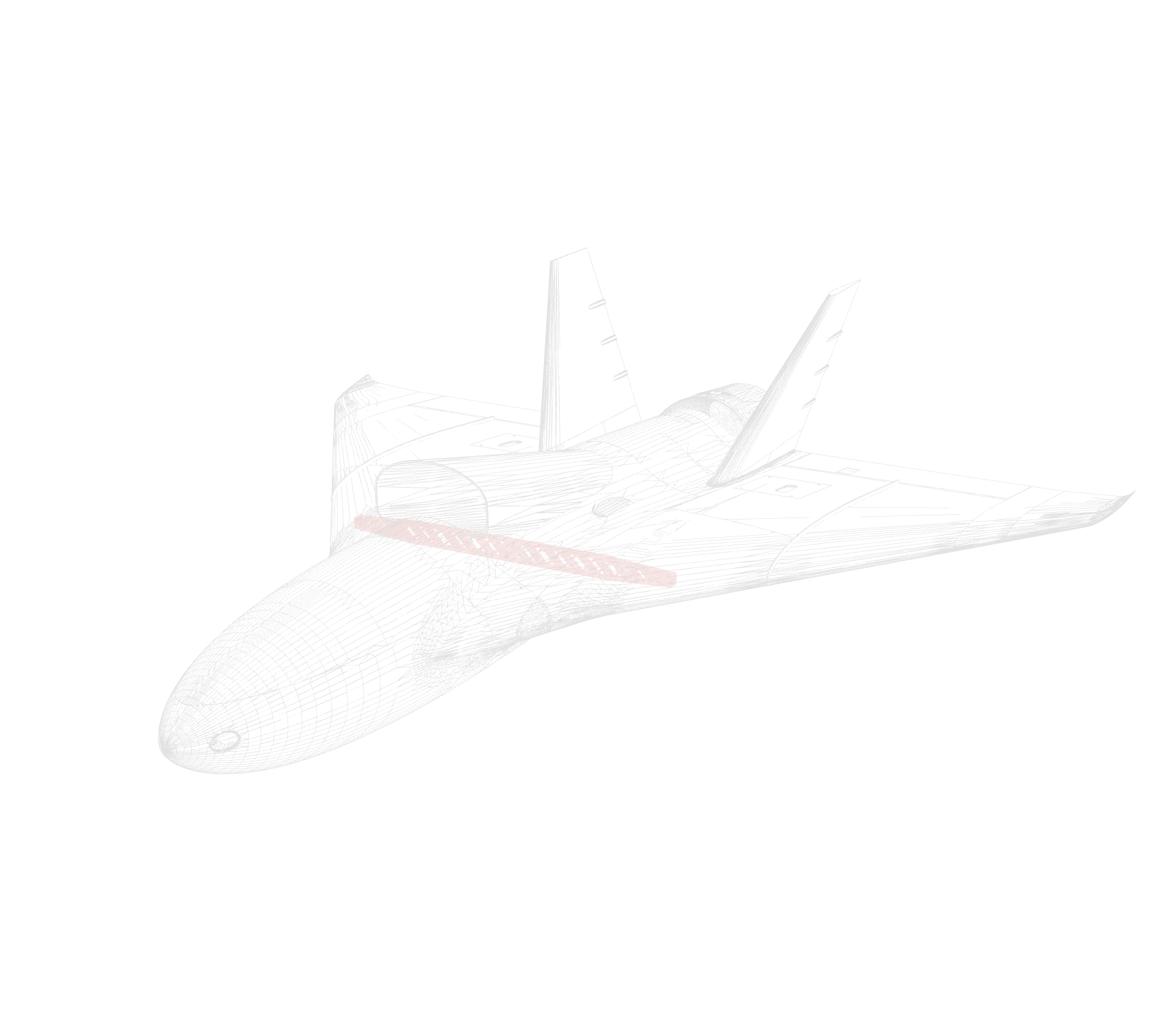
RC aircraft require different materials optimized for specific parts.
LW-PLA (Main Airframe)
Foaming agents reduce density 30–50%. Critical for flight performance. All aircraft use this.
PLA+ (Control Surfaces)
Elastomers improve impact resistance. Used for elevons, tail fins. Look for "PLA+" or "Tough PLA".
PETG (Mounting Points)
High tensile strength for motor mounts, battery trays. Model-specific.
TPU (Flexible Hinges)
Rubber-like for printed-in-place hinges. Model-specific.
New to 3D printing RC aircraft? Visit our Getting Started guide for printer recommendations, slicer setup, and material basics.
Ready to buy filament? Windcatcher RC stocks LW-PLA, PLA+, PETG, and TPU tested with Zephyr aircraft.
You'll use FOUR profiles per printer — two for PLA+ and two for LW‑PLA. The Quick‑Start Pack includes all of these. Each material needs:
Filament Profile – Material settings (temperatures, flow, retraction)
Process Profile – Print settings (speed, walls, infill, layer height)
Follow the steps below to download, import, and use these profiles. The reference section at the bottom breaks down every setting if you want to understand or customize them.
Download the free Quick‑Start Pack (one ZIP with all printers, PLA+ and LW‑PLA profiles, and both test STLs). You'll only download this once.
Quick‑Start Pack
One download with profiles for PLA+ and LW‑PLA plus the nozzle and wing test STLs.
How to Import Profiles
After downloading the Quick‑Start Pack, extract it and import the four JSON profiles for your printer into your slicer:
Bambu Studio / OrcaSlicer: Go to File → Import → Import Configs, then select all four JSON files
PrusaSlicer: The JSON profiles are not compatible. Use the settings tables below to manually create filament and process profiles for LW-PLA and PLA+.
The profiles will appear in your filament and process dropdowns. You'll select them in Step 2.
Before printing a full aircraft, test your profiles with the F-87 nozzle part. You'll print this SAME STL twice—once with LW-PLA profiles (target: 2.4g) and once with PLA+ profiles (target: 4.0g). This verifies your settings and demonstrates the 30–50% weight reduction.
What is an STL File?
STL is a 3D model file format. It's the geometry of the part—the shape your printer will build. Once imported into your slicer, you'll apply your profiles (from Step 0) to tell the printer HOW to build it.
STL vs 3MF files:
STL: Clean geometry only. You'll need to orient the part flat on the bed (rotate as needed), then if modifiers are needed for reinforcement, right-click the part → Add Modifier → choose shape or height range. Full control, blank slate.
3MF: Some full aircraft packages include 3MF files with modifiers already placed at critical stress points, plus our preferred orientation and bed layout. Just load the 3MF, select your filament and process profiles, and slice—everything is pre-configured.
How to Import:
• Drag and drop the STL file into your slicer window, OR
• Go to File → Import → Import STL/3MF, then select the downloaded file
Now that your STL is loaded and profiles are imported, tell your slicer which settings to use. You'll do this twice—once for each material.
First Print: LW-PLA Test
In your slicer, find the dropdown menus at the top:
1. Filament dropdown: Select "Zephyr LW-PLA @[Your Printer]"
2. Process dropdown: Select "Zephyr LW-PLA @[Your Printer]"
3. Click "Slice" and send to your printer
Target weight: 2.4g — If it's too heavy, see the troubleshooting reference below.
Second Print: PLA+ Test
Same STL, different profiles:
1. Filament dropdown: Select "Zephyr PLA+ @[Your Printer]"
2. Process dropdown: Select "Zephyr PLA+ @[Your Printer]"
3. Click "Slice" and send to your printer
Target weight: ~4.0g — Should be roughly double the LW-PLA weight.
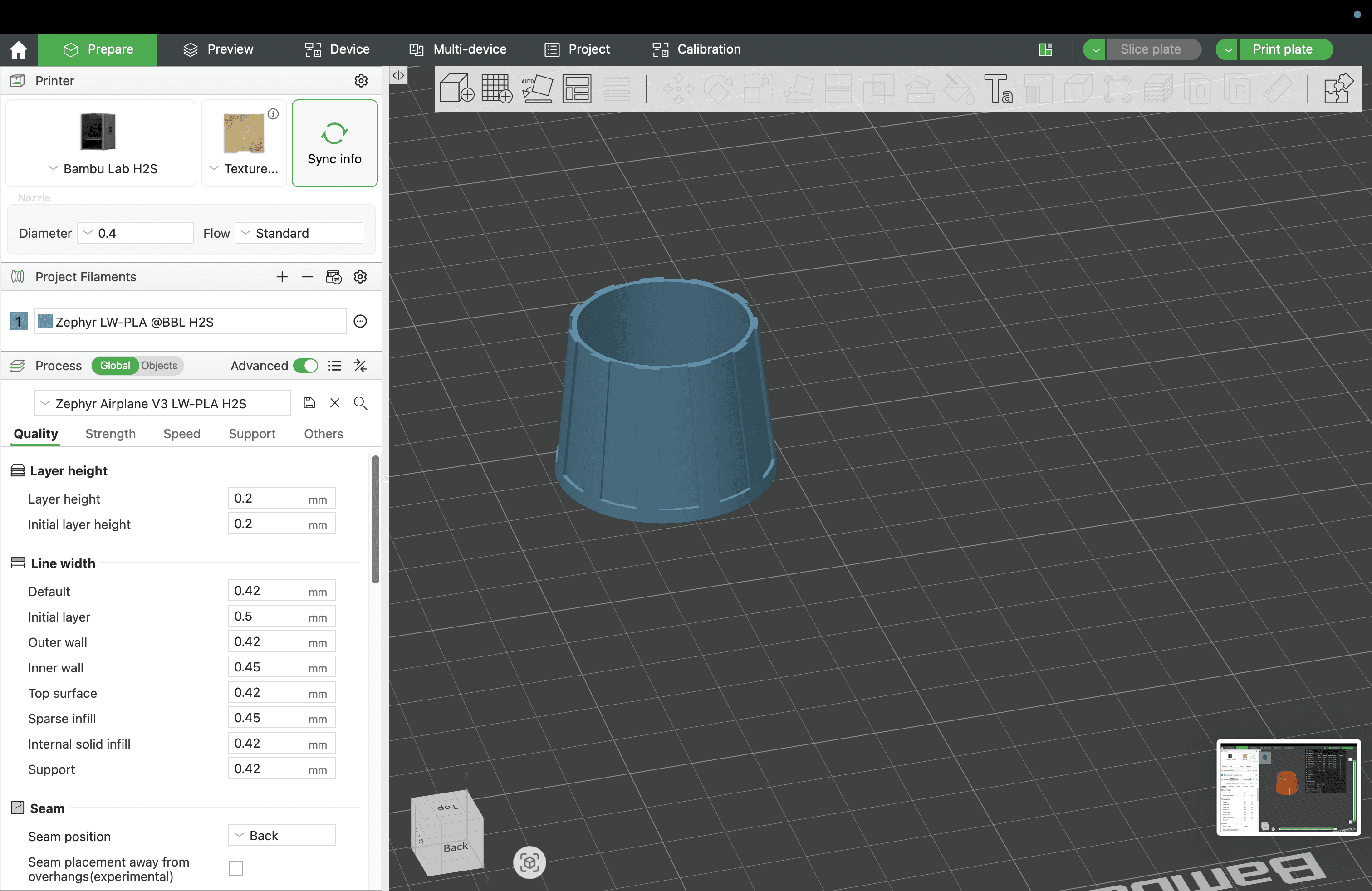
Prepare: Select profiles in your slicer
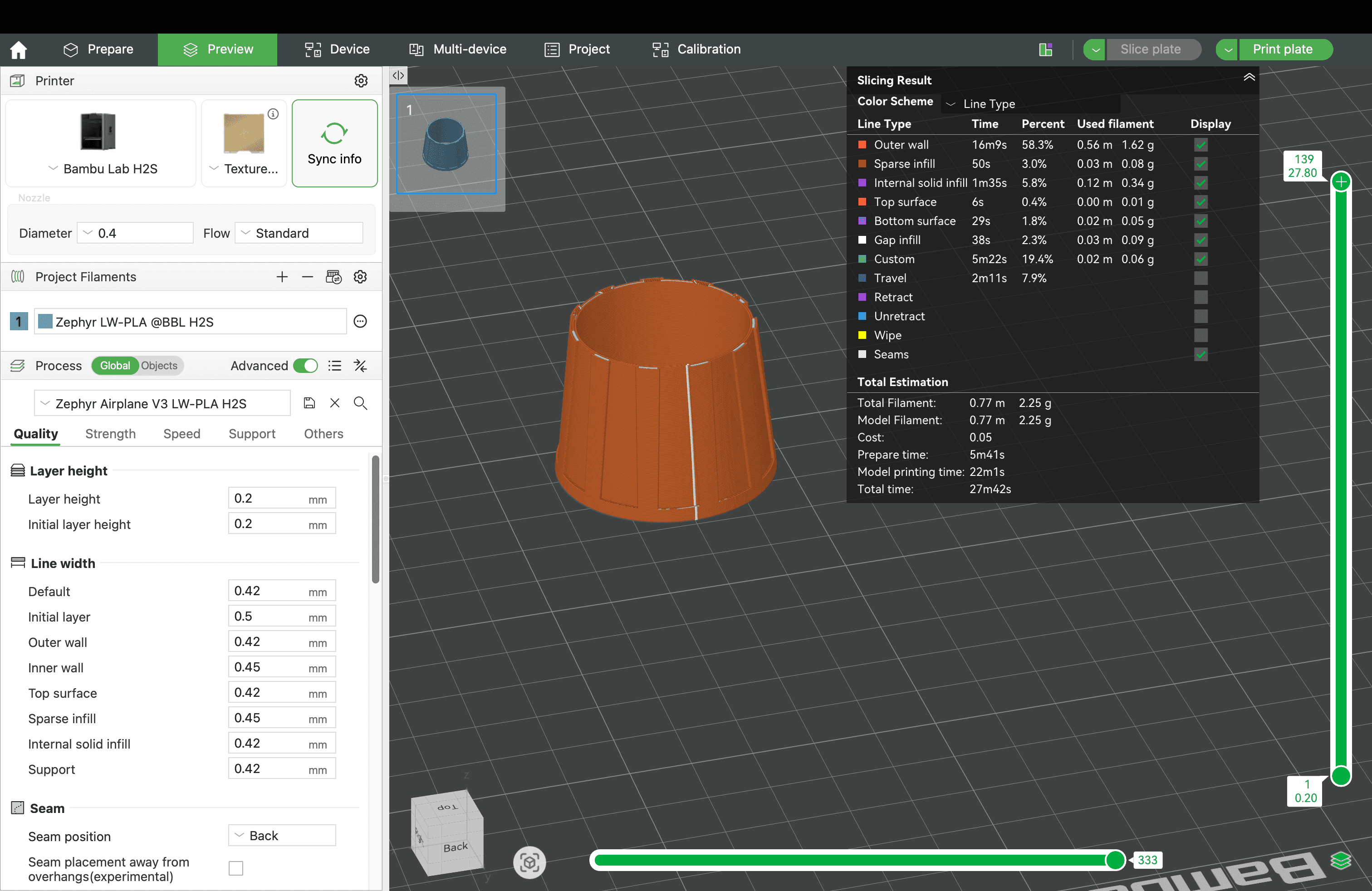
Preview: Verify the slice before printing
These are the settings inside the profiles you downloaded. Review these if you want to understand what each parameter controls or customize them for your specific needs.
Filament Settings
| # | Setting | Value | Note |
|---|---|---|---|
| F-01 | First Layer Temp | 240°C | Prevents excess bed adhesion |
| F-02 | Other Layers Temp | 250°C | Activates foaming agents |
| F-03 | Bed Temp | 60–70°C | Higher for large parts |
| F-04 | Flow Ratio | 0.60 | Critical for expansion |
| F-07 | Retraction Length | 0.2mm | Minimal retraction |
Process Settings
| # | Setting | Value | Note |
|---|---|---|---|
| P-01 | Wall Generator | Classic | NOT Arachne |
| P-02 | Line Width | 0.4mm | Standard nozzle |
| P-03 | Wall Loops | 1 | Single perimeter |
| P-04 | Top Shell Layers | 2 | Top surface |
| P-05 | Bottom Shell Layers | 2 | Bottom surface |
| P-06 | Layer Height | 0.2mm | Optimal for LW-PLA |
| P-07 | Infill Density | 3% | Weight reduction |
| P-08 | Infill Pattern | Gyroid | Lightweight structures |
| P-09 | First Layer Speed | 15–20mm/s | Slow for adhesion |
| P-10 | Other Layers Speed | 30–50mm/s | Standard speed |
| P-11 | Max Sparse Infill | 0 | No infill anchors |
| P-12 | Filter Tiny Gaps | 0 | Preserve features |
| P-13 | Narrow Solid Fill | OFF | Reduce walls |
| P-14 | Shell Thickness | OFF | Weight optimize |
| P-15 | Avoid Crossing | ON | Reduce stringing |
| P-16 | Brim Ears | Optional | Orca/Bambu only |
WEIGHT CHECK
Target: 2.4g
Weight off? Double check the settings tables above and make sure your filament profile and process profile are both correctly applied in your slicer. Verify each setting one by one—temperature, flow ratio, layer height, and wall count all affect final weight.
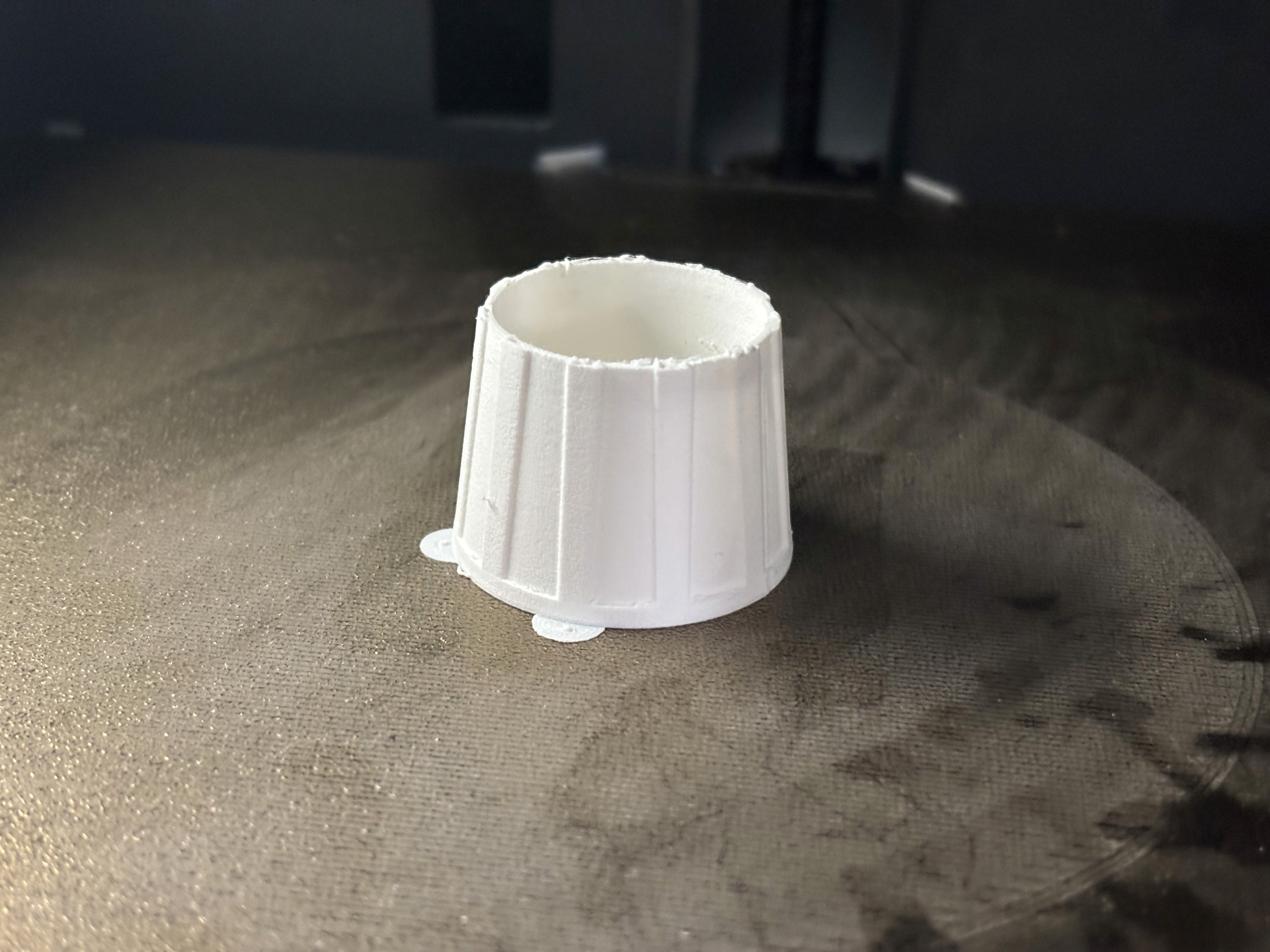
Verify your print matches the target weight
These are the settings inside the PLA+ profiles you downloaded. PLA+ uses the SAME process settings as LW-PLA (P-01 to P-16 from above), but different filament settings:
PLA+ Overrides
| First Layer Temp | 225°C | Standard PLA+ |
| Other Layers Temp | 225°C | Standard PLA+ |
| Flow Ratio | 1.0 | No foaming |
Target: ~4.0g (double LW-PLA weight)
Smooth surface, good adhesion. Both prints successful? Ready to print aircraft.
You've successfully printed both nozzle test prints and verified your settings—great! Now let's explore an advanced technique using a real aircraft part. Download the F-87 Astral Thunder 40mm Wing STL to practice applying modifiers—this part is large enough to meaningfully demonstrate reinforcement techniques.
Modifiers add strength with minimal weight penalty—often less than 1% weight increase for significantly improved durability. Many Zephyr aircraft packages include 3MF files with modifiers already placed at critical stress points—just load the 3MF, select your profiles, and slice. Once you understand how modifiers work, you can add them to any model yourself or customize the existing ones.
Geometric Modifiers (Shape-Based)
Add reinforcement using 3D shapes positioned exactly where you need strength.
Best for: Large fuselage parts that need extra durability, motor mounts, landing gear attach points
1. Right-click the part on your build plate → Add Modifier → Choose a shape (cube, cylinder, sphere)
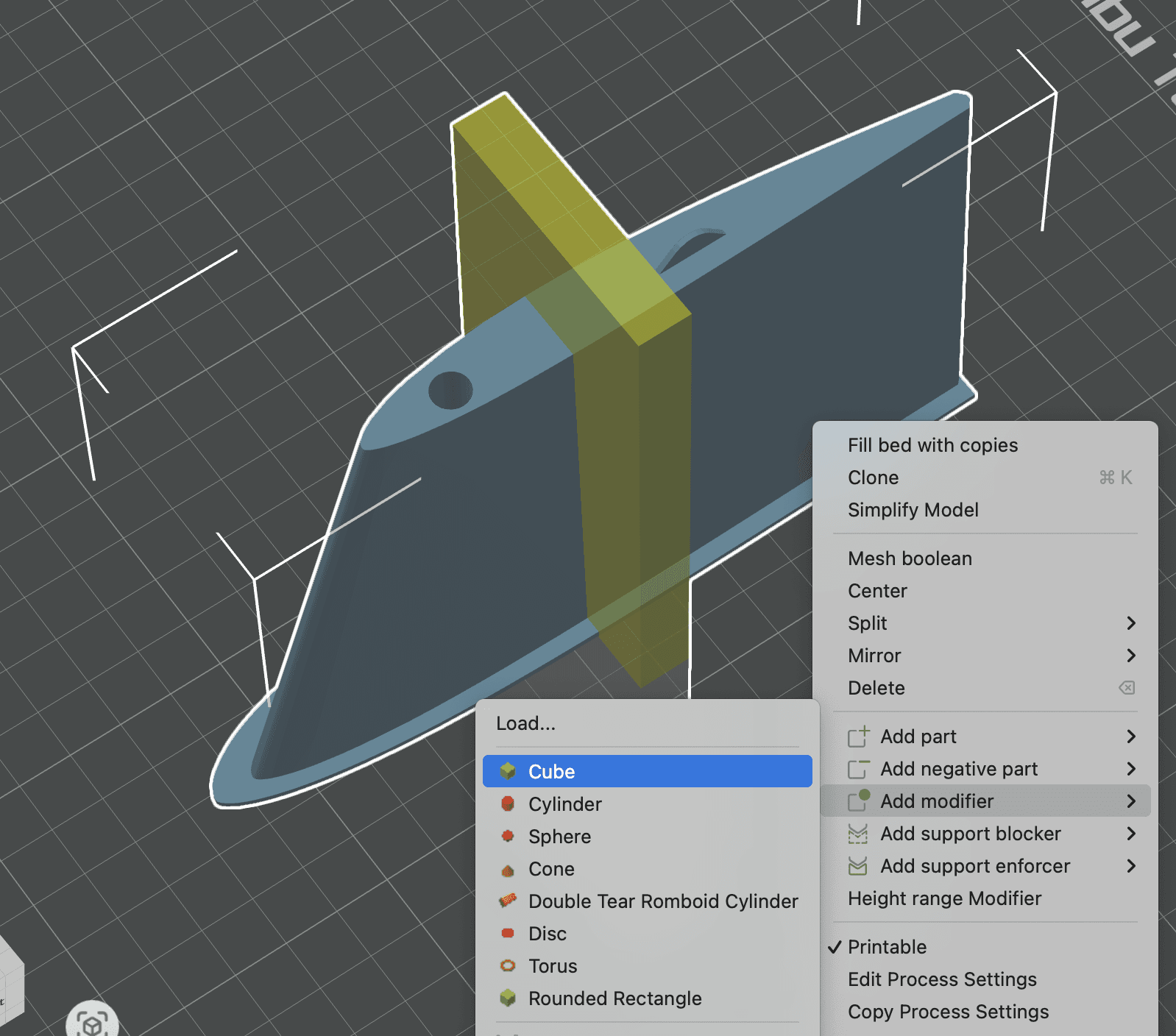
Right-click menu with "Add Modifier" option
2. Position and scale the modifier shape over the area you want to reinforce
3. Important: In your slicer's right panel, look for the dropdown that says "Global" or "Objects". Click it and select "Objects" to see per-object settings instead of global settings.
4. Click the modifier in your object list → Override settings for JUST that region:
• Wall Loops: Increase from 1 to 2 walls for impact zones
• Infill Density: Boost the infill you're already using (e.g., 3% → 15%)
• Concentric Infill: Make modifier 1.2mm wide to create internal ribs that follow the contour of the part's wall
5. Slice and preview—reinforced zones appear in a different color
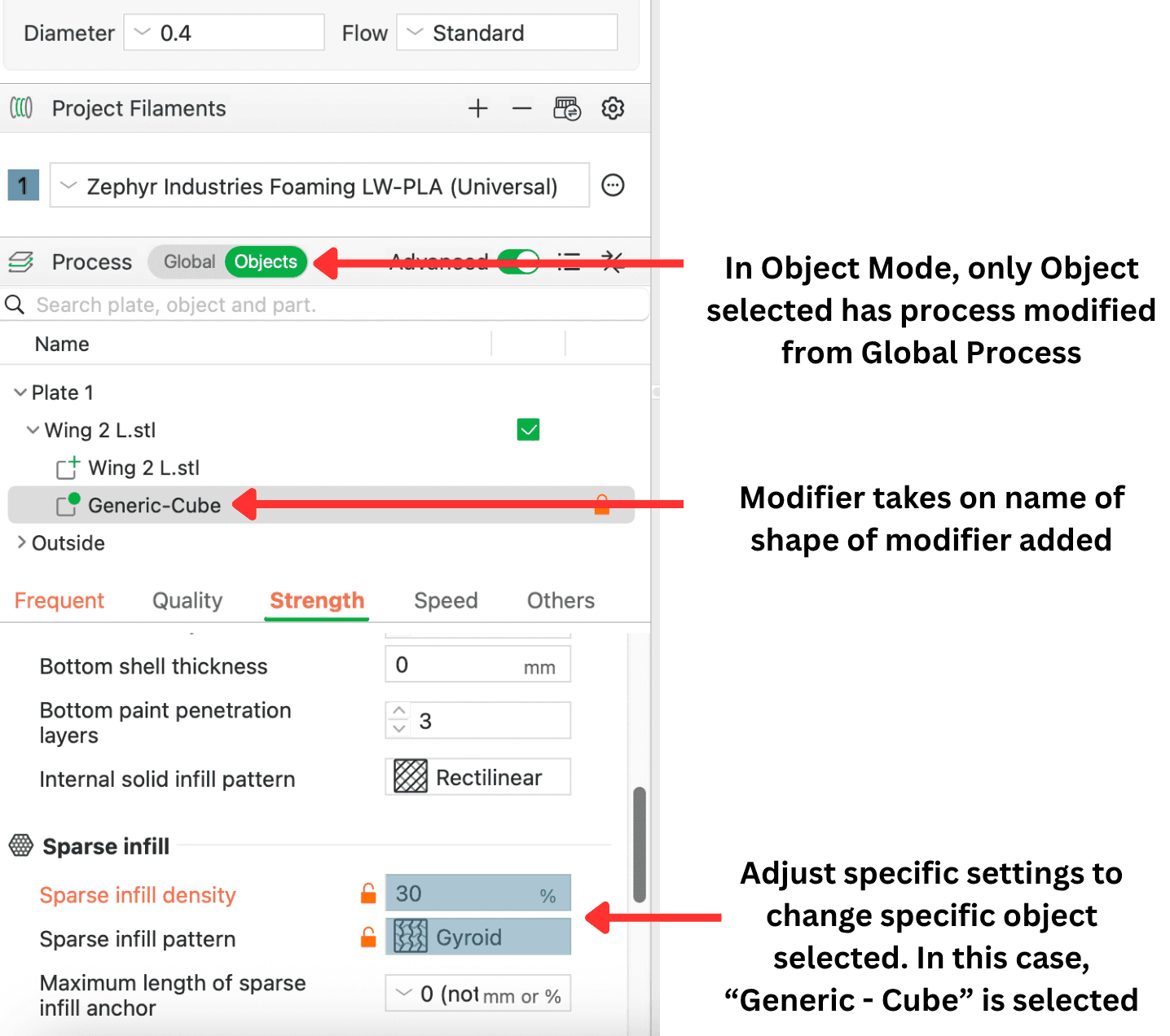
Switch from "Global" to "Objects" to access modifier settings
Key detail: Concentric infill pattern is highly recommended for large fuselage parts. Size your modifier to 1.2mm width to create internal ribs that match the part's wall contour—dramatically increases durability with minimal weight penalty.
Height Range Modifiers (Z-Based)
Reinforce specific layer heights regardless of geometry. Affects all parts of the model at those Z-coordinates.
Best for: Wing roots, areas that get handled or gripped frequently
1. Right-click the part on your build plate → Add Height Range Modifier
2. Set the Z-height range (Start and End values in mm)
3. Override settings for all geometry within that height range:
• Wall Loops: Increase to 2 walls for better handling durability
• Infill Density: Boost density where stress concentrates
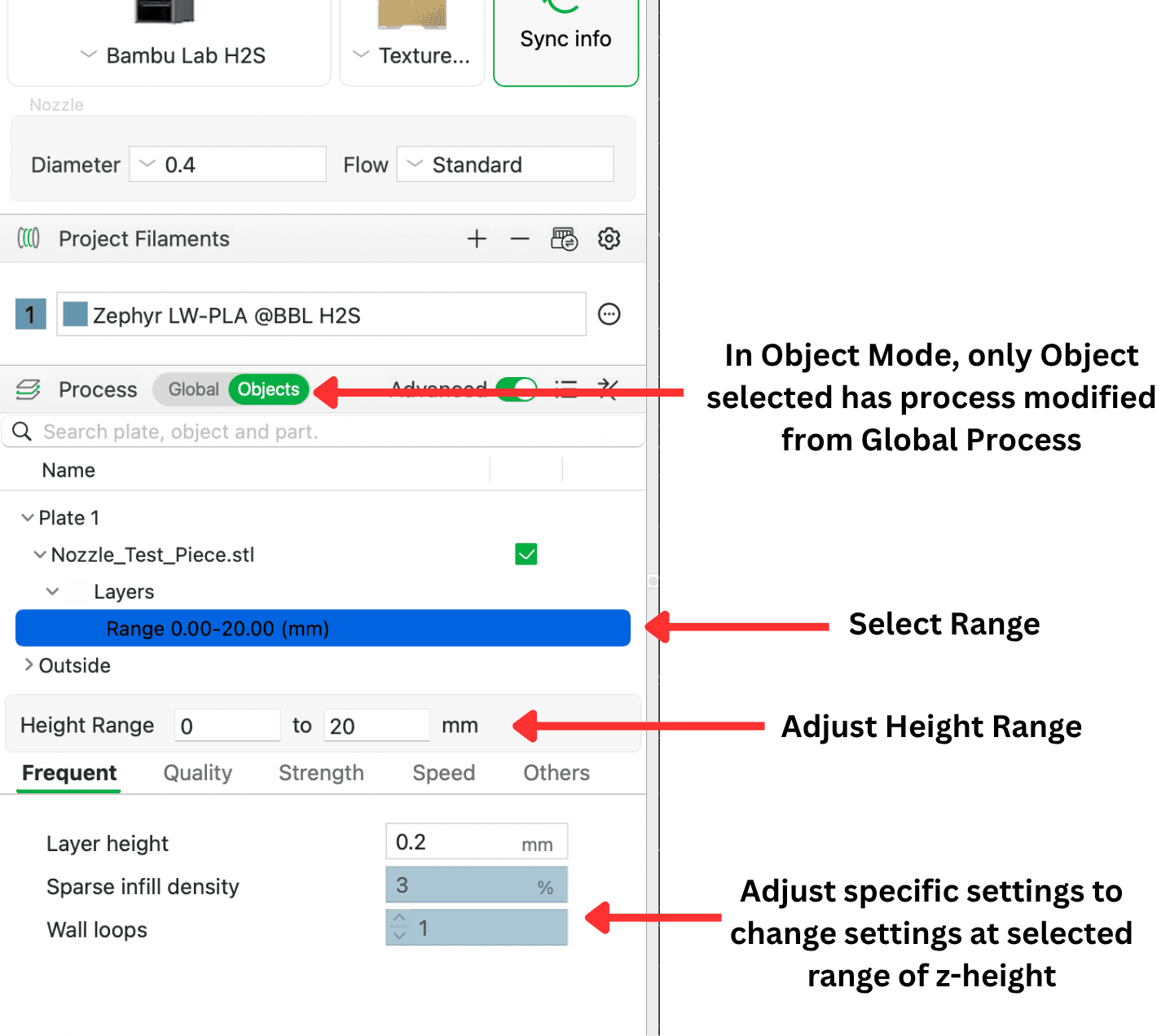
Setting Z-height range and overriding settings for specific layers
4. Preview the layer view to see which layers are reinforced
Example: The Velora uses a 0-30mm height range modifier with double walls. This greatly increases handling durability and connection lifespan with minimal weight gain. It also strengthens the wing root for higher-speed flight.
Different tools for different jobs:
• Geometric Modifiers: Targeted reinforcement following part contours—excellent for large fuselage parts with concentric infill pattern
• Height Range Modifiers: Blanket reinforcement across entire layer height—perfect for wing roots and areas under stress at specific heights
Practice these techniques on the F-87 wing. Try both approaches—concentric for contour-following ribs, and increased density for targeted strength. Once comfortable, you'll be able to add modifiers to any aircraft part for optimized strength-to-weight ratios.
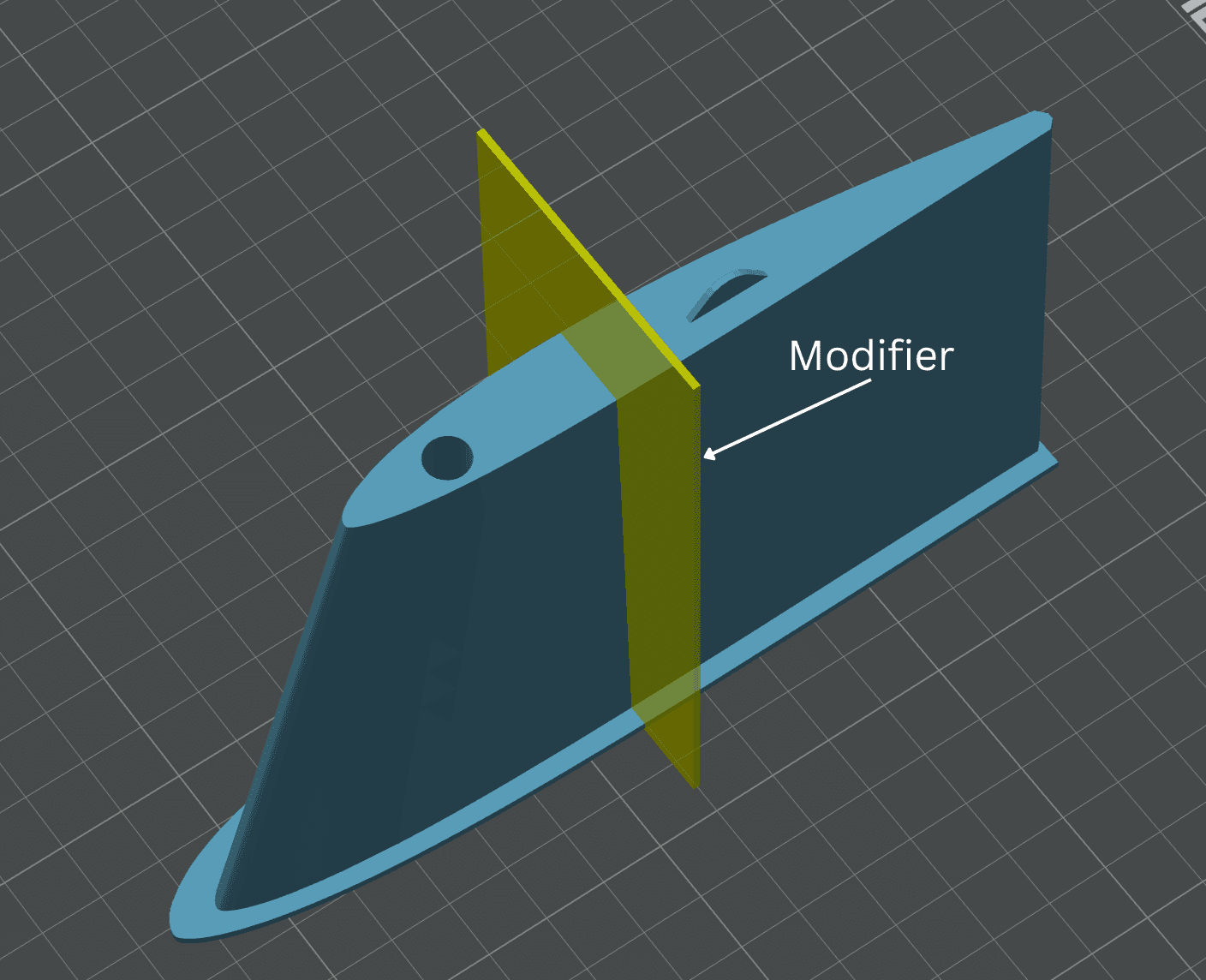
Approach 1: Prepare - concentric modifiers positioned at stress zones
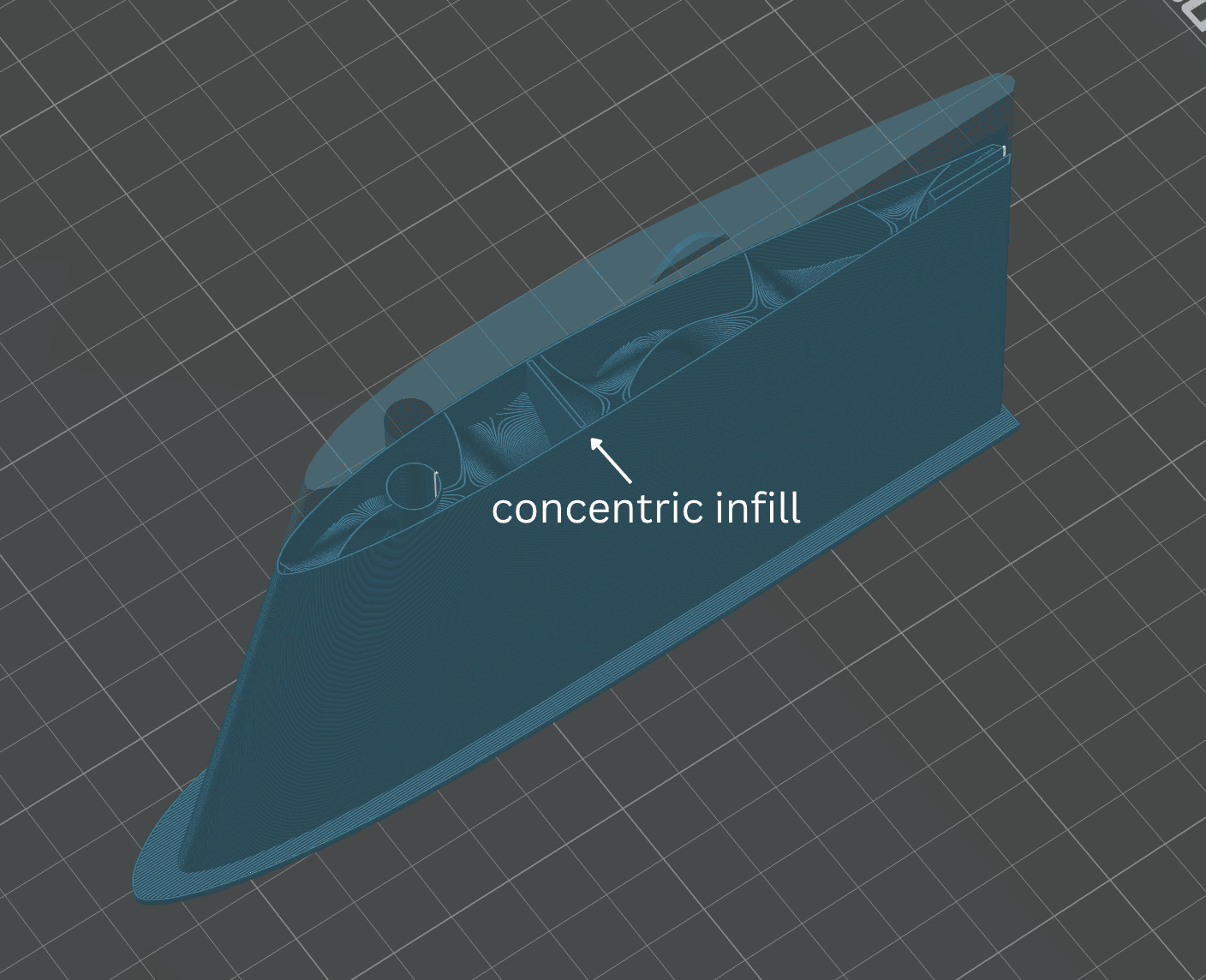
Approach 1: Preview - 1.2mm concentric pattern creates internal ribs
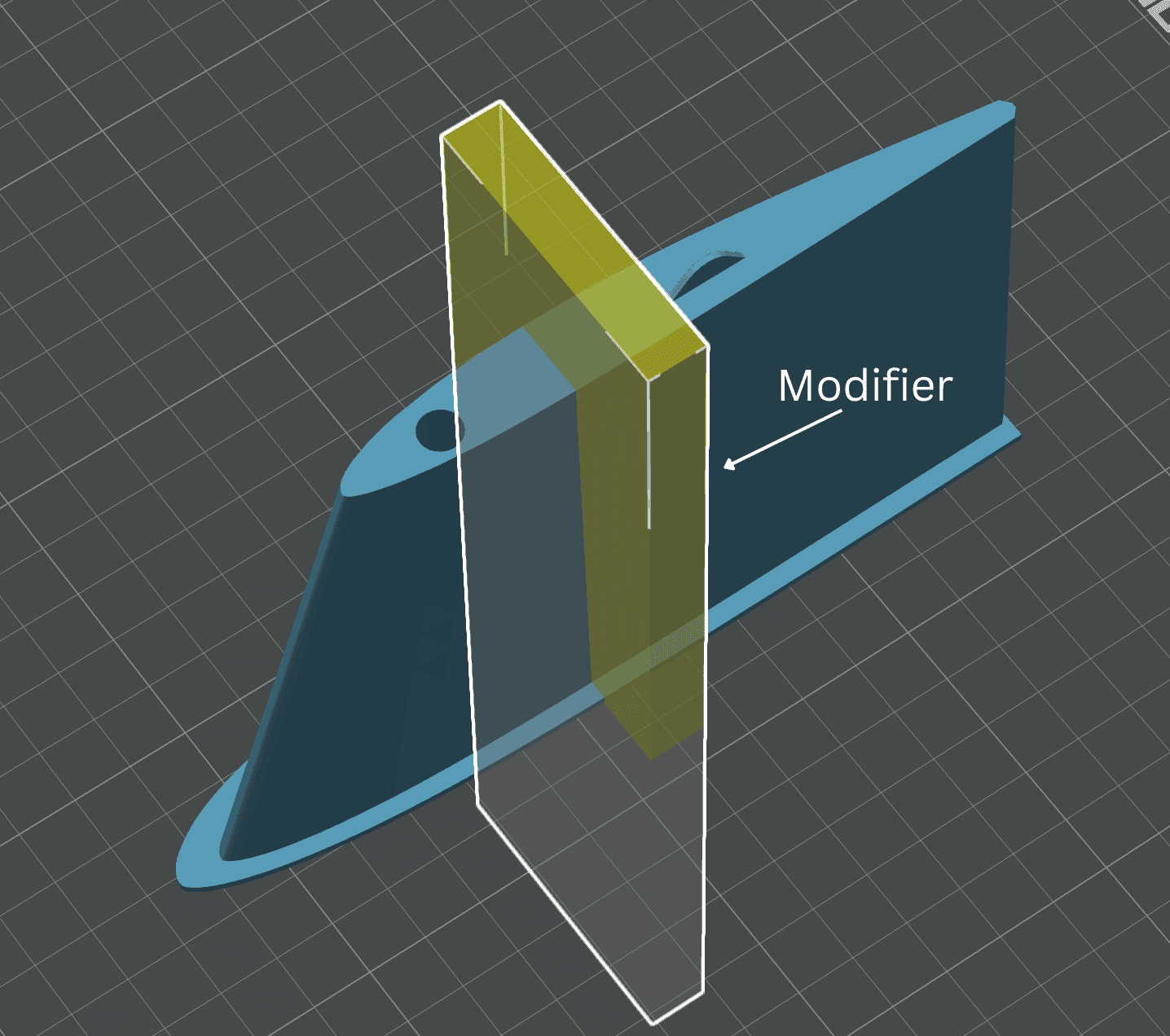
Approach 2: Prepare view - modifier with 15% gyroid (vs 3% base)
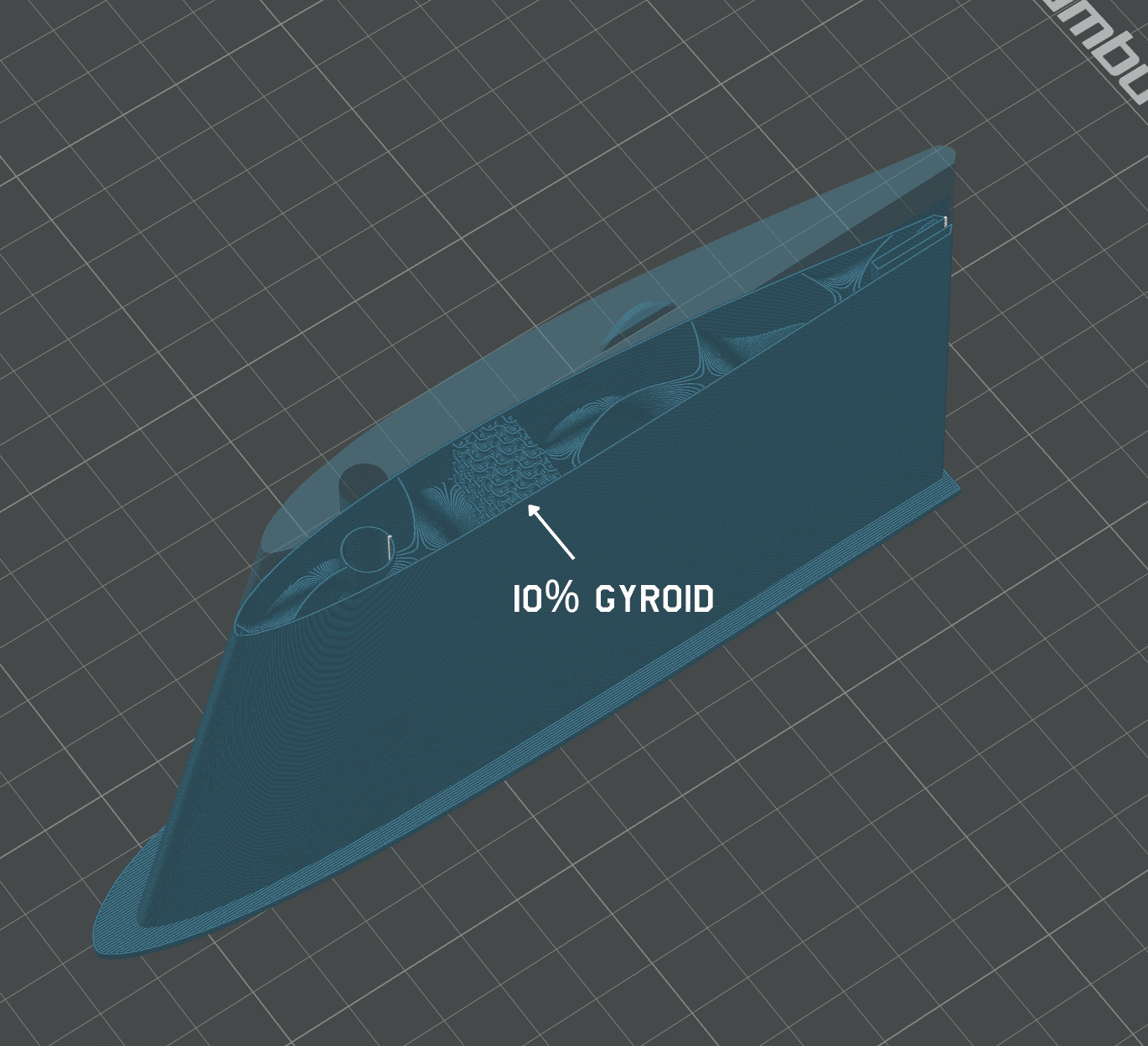
Approach 2: Preview view - reinforced zones with denser gyroid visible
Why 0.60 flow?
LW-PLA expands. 0.60 balances strength-to-weight for foamed deposition.
Matte surface?
Foamed texture is normal. Air pockets = lightweight structure.
Which brands?
ColorFabb, eSUN, Polymaker, Bambu Aero. Adjust temps ±5°C to tune weight.
Regular PLA?
Not recommended for airframes. Too brittle. Use PLA+ for control surfaces.
More build guidance?
Visit our Learn hub for the full process overview.
Already dialed in a test part? Head to our learn hub for build walkthroughs, tuning notes, and printable checklists, then grab consumables from Windcatcher RC.